TechRadar Verdict
The Scuf Envision Pro V2 sits in a fairly niche space in the controller market, positioned for those who want to use a controller, but one with the extra buttons and inputs that are better utilized on keyboard and mouse. The buttons and triggers feel superb, though the software lacks stability, and all in all – I’m left wondering who would actually benefit from all the additional bells and whistles.
Check Amazon Singapore Pros- +
Comfortable design, symmetrical sticks suit those that prefer PlayStation pads
- +
Buttons are wonderfully clicky and tactile
- +
A whole heap of additional buttons
- -
Full features require a desktop app
- -
Wireless and wired modes have trouble working with each other
- -
Placement of additional buttons can lead to accidental inputs, and control scheme confusion
- Best PC controllers: top gamepads from GameSir, Thrustmaster and more
- The best Xbox controllers
- Best PS5 controllers in 2025
Why you can trust TechRadar We spend hours testing every product or service we review, so you can be sure you're buying the best. Find out more about how we test.
Jump to:- Two-minute review
- Price & availability
- Specs
- Design and features
- Performance
- Should you buy it?
- Also consider
- How we tested
Scuf Envision Pro V2: two-minute review
Bespoke PC controllers are still fairly rare in the gaming accessory space, though it’s definitely a growing market. Most offer simple controllers, usually with Xbox button layouts and functionality, to cater to those who just want to play games on PC using the best PC controllers.
Then there’s the Scuf Envision Pro V2, which is positioned as a highly customizable and complex product that has many more buttons than a regular controller would usually have by default. This takes the Scuf Envision Pro into an even more niche area, for those who want the additional hotkeys and buttons offered by keyboard and mouse, but with the form factor and comfort of a controller. It’s an interesting idea, though one that I’m not sure will be all that useful to many players.
After using the Scuf Envision Pro for 30 hours, I’ve been impressed by its highly tweakable control schemes, its brilliantly designed buttons, and how it’s changed the way I play certain games like Fortnite and Marvel Rivals. Unfortunately, I’ve also run into countless issues that stem from the added complexity of a controller like this. The software is inconsistent, the onboarding is essentially non-existent, and the troubleshooting is particularly frustrating.
There’s a lot about the Scuf Envision Pro that’ll appeal to those who want to tinker away at every single aspect of their controller, but personally, I found the options overwhelming and rarely worth the time spent toying around in menus on my desktop. Mostly, I’ve come away questioning why someone who wants so much customization in a controller wouldn’t simply use a keyboard and mouse instead, and at the high cost of entry, the Scuf Envision Pro isn’t a gamepad I’d recommend to 90% of the gamers I know.
Still, it’s worth noting that the Scuf Envision Pro isn’t really supposed to be for everyone. The deep suite of programmable inputs, the on-board RGB lighting, and the ability to truly create a specialized controller of your own do amount to something quite special. If you do want full control over your gaming experience, then the Scuf Envision Pro is a very competitive offering, and one that actually feels good to hold and use.
I could certainly see some loving the process of configuring individual controller profiles, dialling in triggers, and setting custom hotkeys, but there’s a lot you have to put in before you really start seeing its full potential.
As I’m spending a lot of my time reviewing gaming hardware at the moment, I’m growing to loathe the various software programmes that are often required to access a product’s full suite of functions. The Scuf Envision Pro requires Corsair’s iCue software for first-time setup. It’s a clunky affair that really could do with some onboarding tutorials, or even just more information on how to get started with the new controller.
Get daily insight, inspiration and deals in your inboxContact me with news and offers from other Future brandsReceive email from us on behalf of our trusted partners or sponsorsBy submitting your information you agree to the Terms & Conditions and Privacy Policy and are aged 16 or over.Most frustrating is the instability of the iCue software’s connection to the controller itself. I’d regularly find myself unplugging and re-plugging the wired connection to get the controller to show up in the menus. Then there’s the switch on the back of the controller that must be flipped between wired and wireless modes. This switch isn’t something I’ve seen on controllers like this before, and it just adds another level of complexity to what is already a pretty tangled-up web connecting the Wired and Wireless modes.
While I do understand the extra levels of precision and control afforded by a keyboard and mouse setup, I’ve always preferred using a controller for one key reason – simplicity. The Scuf Envision Pro is anything but simple, though perhaps that’s the point. Even after 10 hours of fiddling with the Scuf Envision Pro, I was rarely able to just plug it in and play. Nor was I ever 100% sure what profile I was playing with, whether my controller was using the wireless or wired mode, and whether the RGB lighting was even displaying what I’d programmed it to.
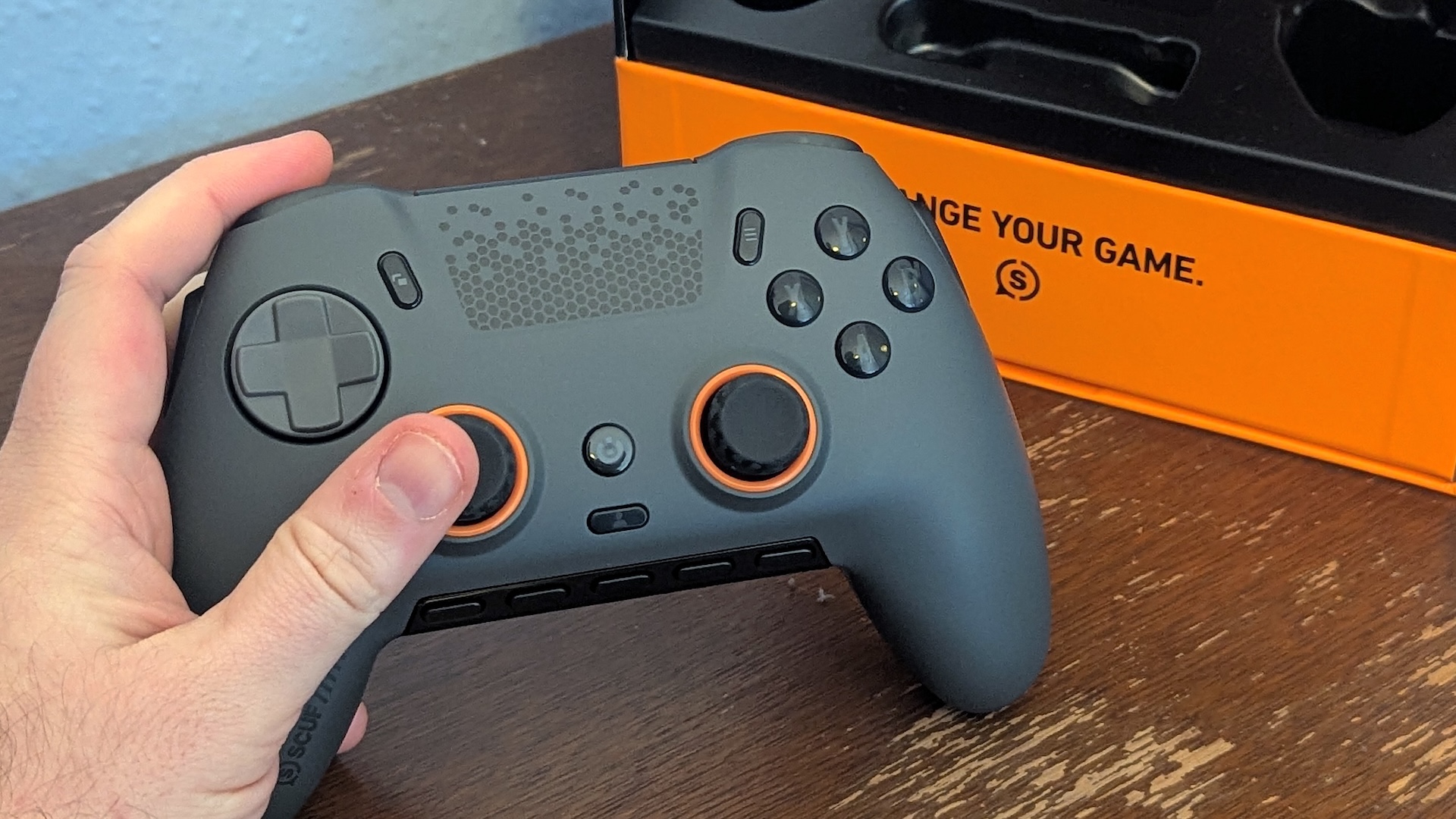
When the Scuf Envision Pro does work, it works extremely well. Once I’d dialed in my settings for a few different games, and after digging into the iCue software, I was quite impressed by the functionality of the gamepad. I adore the form factor, in particular, as I’ve always gravitated towards symmetrical sticks and less bulky controllers. The design is sleek, but sturdy. It’s technically heavier than a PS5 DualSense controller, but it certainly doesn't feel like it. The buttons are a real standout, with an endlessly satisfying click to their action. Similarly, the d-pad features a nice clickiness, and the triggers feel smooth and snappy regardless of how you program them.
There’s a big issue with the price, especially for someone like me who just isn’t going to realistically make use of the majority of the features of the Scuf Envision Pro. Perhaps it could be a brilliant upgrade for PC gamers looking to play games like racing simulators, but I think for the more general gamer, there are very few use cases for the iCue software, or the bulk of the additional buttons on the controller itself.
Scuf Envision Pro V2 review: price and availability
- $169.99 / £159.99
- Priced around the same as the V1 was at launch
- Not many direct competitors, but priced reasonably for the feature set and amount of buttons / paddles
The Scuf Envision Pro is difficult to compare to its competitors, given that it offers a frankly dizzying number of buttons and programmable features. Unless you’re set on making use of absolutely everything the Scuf Envision Pro has to offer, it’s tough to recommend it over something considerably cheaper, like the GameSir G7 Pro, which comes with drift-resisting TMR sticks and four extra buttons.
In terms of direct alternatives to the Scuf Envision Pro, you’re looking at the Razer Wolverine V3 Pro, Xbox Elite Series 2, and potentially the DualSense Edge. None of these offer the same level of additional inputs and features as the Scuf Envision Pro, and all are slightly pricier. Still, I’d argue that these alternatives have a better user experience when swapping and customizing profiles, and have better software paired with the devices.
Given the Scuf Envision Pro’s mix of controller and keyboard/mouse features, however, you’re getting a lot for the money. The question is whether you actually need extra buttons in the center of the controller, and whether the side-mounted SAX buttons will be more of a hindrance or a useful addition to your setup.
Unlike its direct predecessor, the Scuf Envision Pro V2 does feature Hall Effect thumbsticks, aiming to eliminate the risk of stick drift. I’d expect this from a premium controller, but it’s still nice to see a noticeable upgrade on the previous iteration. Generally, most competitors also offer Hall Effect thumbsticks for a similar price, or TMR sticks.
All in all. It’s tough to say whether the Scuf Envision Pro is worth the high asking price, as this will largely come down to your own personal needs when picking up a PC-only controller. One thing to note is that unlike its competitors, the Scuf Envision Pro can only be used with Windows PCs. That means no consoles, and no Mac or Linux. For me, I’d be looking for a bit more versatility when choosing a premium controller, but if you only game on PC, you’ll be set.
Scuf Envision Pro V2 review: Specs
Swipe to scroll horizontallyRow 0 - Cell 0Scuf Envision Pro
Price
$169.99 / £159.99 / AU$ 322 (estimated)
Weight
10.05oz / 362g
Dimensions
6.5 x 4.23 x 2.5in / 165 x 107.5 x 63.5mm
Compatibility
PC (Windows)
Connection type
Wireless, Wired (audio jack), Bluetooth
Battery life
19 hours
Features
Hall-Effect thumbsticks, adjustable triggers, back paddles, additional buttons on main deck, additional buttons on bumper areas, RGB lighting.
Software
iCue (Corsair; PC)
Scuf Envision Pro V2 review: design and features
- Comfortable and premium build
- Buttons have a great click when pushed
- Triggers and additional buttons are all easy to reach and use
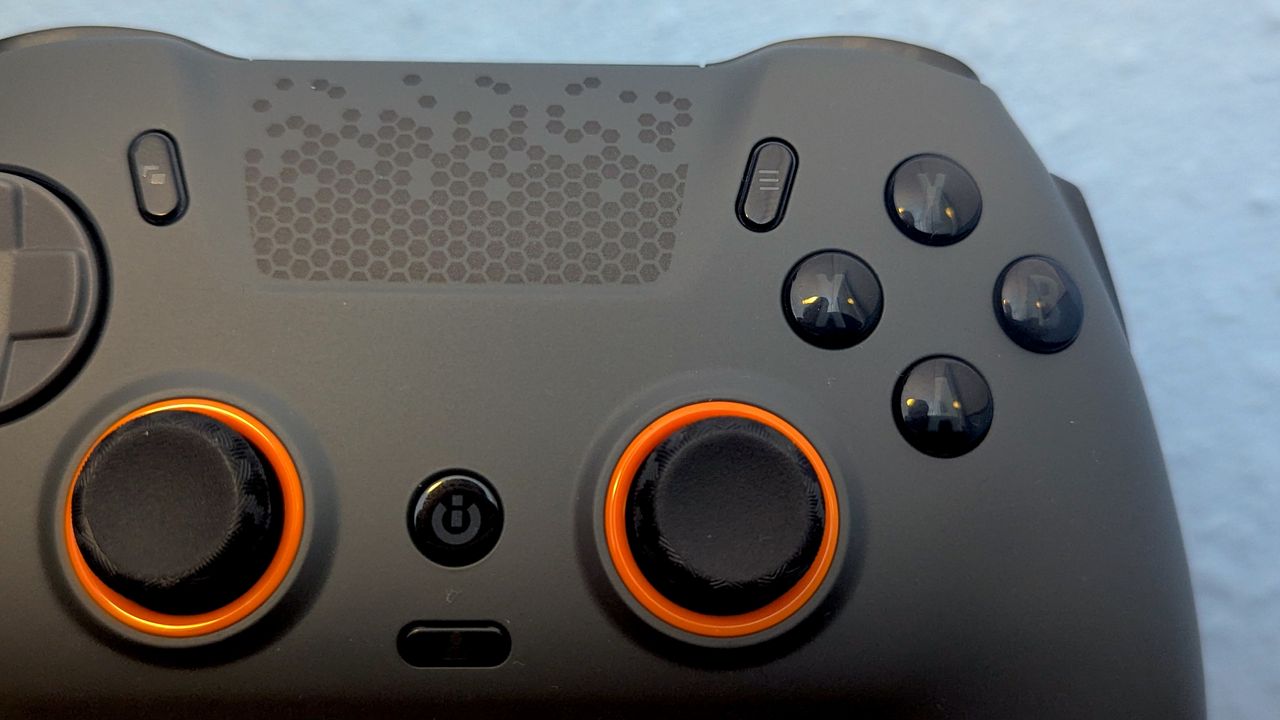
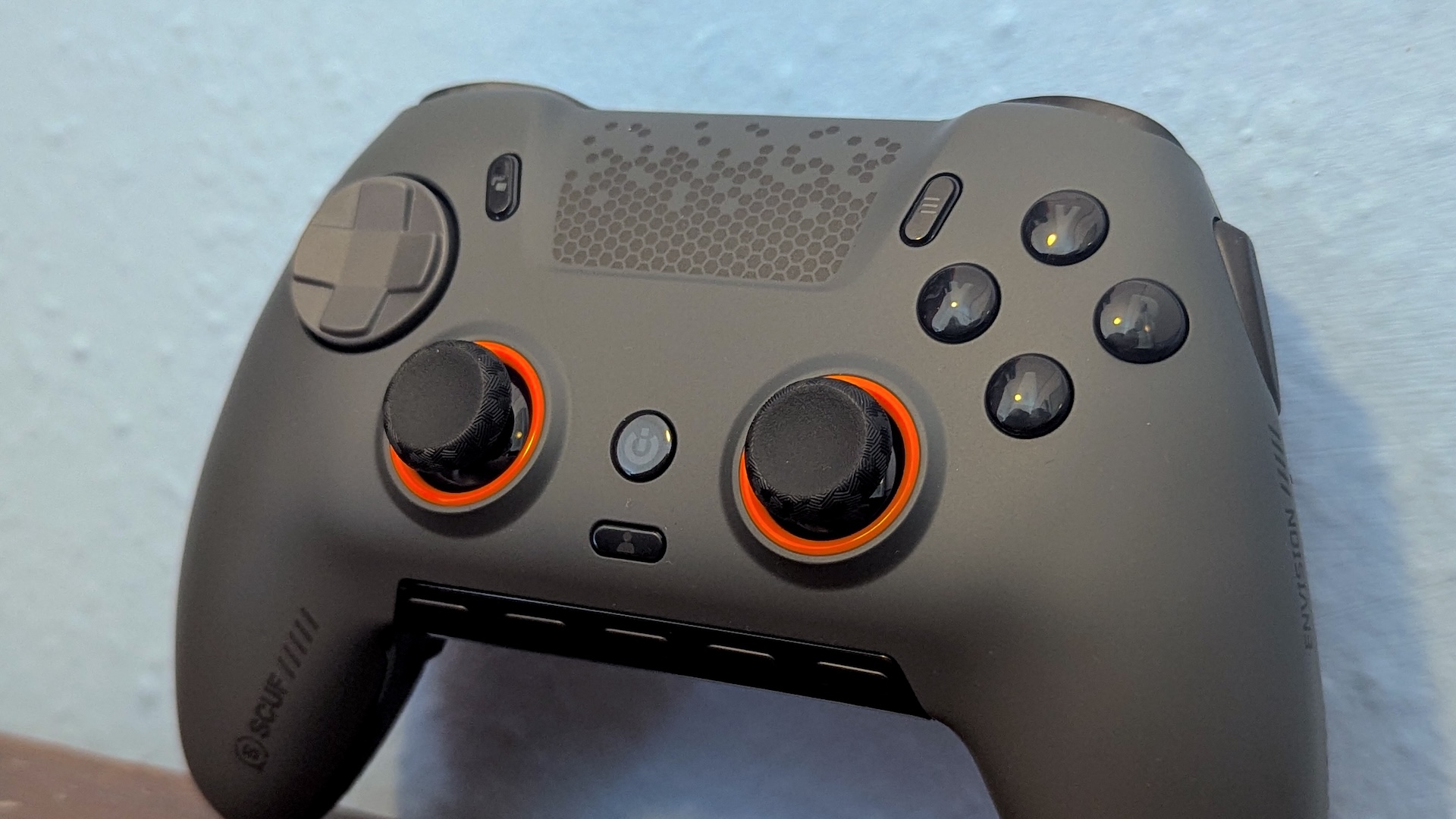
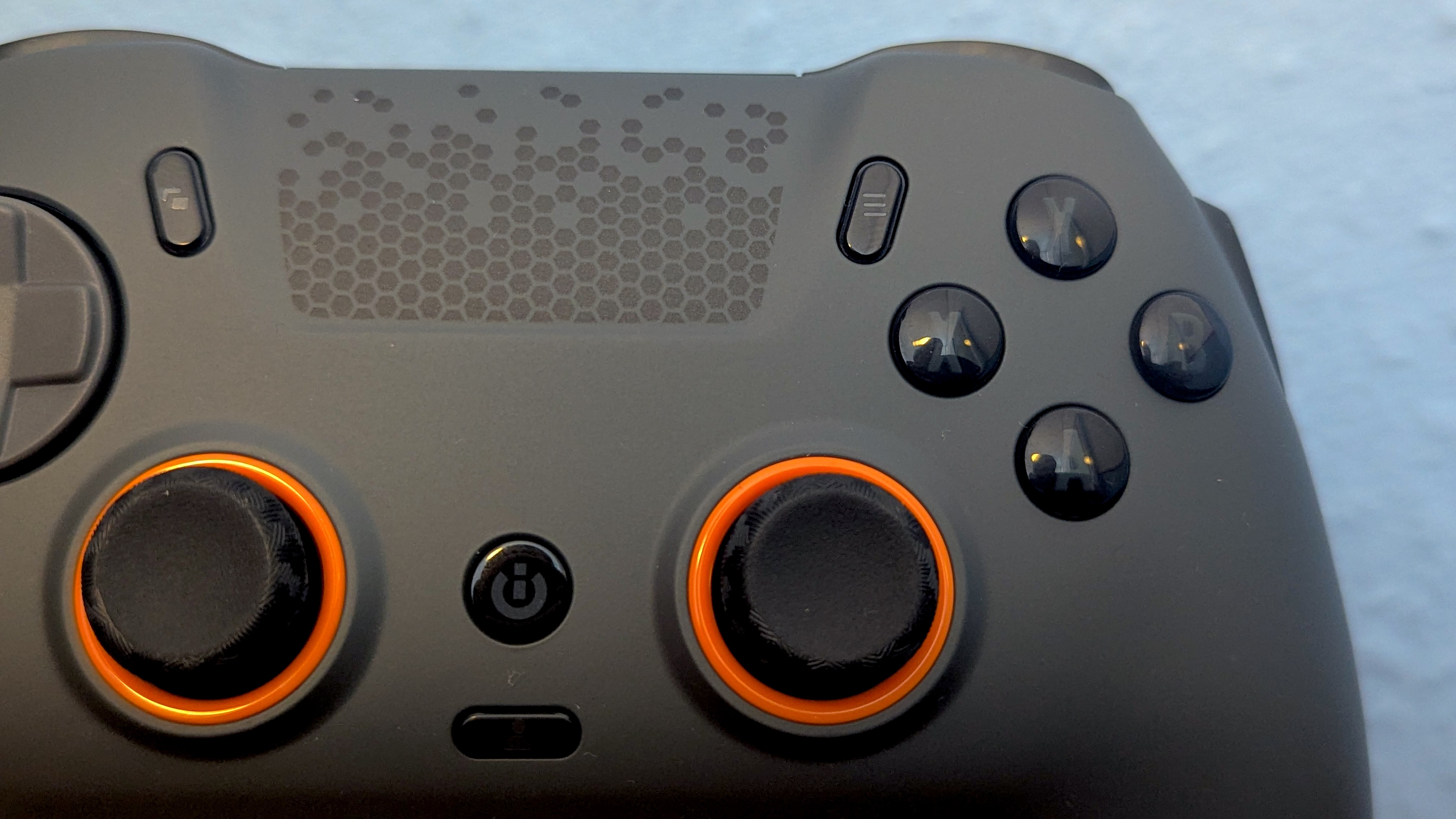
The Scuf Envision Pro is available in a very impressive suite of colors. I got the grey and orange design, and I really like how it looks out of the box. There are a ton of little details found on the sticks, along the edges of the triggers, and on the back grip that make the Scuf Envision Pro look sleek and high-end. I particularly like the little trackpad that blends seamlessly with the main body, and the clean look of the buttons against the faceplate.
Scuf tends to do things a bit differently when compared to its competitors in terms of button layout, especially in the placement of the back paddles. It took me a while to get used to where the four back buttons sit, as they’re lower down than other controllers I’ve used. After a while, though, they feel right, and you can swap out a bunch of the buttons for in-box replacements if you want to tweak things slightly.
I’m less sold on the SAX buttons, which sit up near the front bumper, along the sides of the controller. It’s very easy to press them with your index fingers when you’re not intending to, though you can remove them entirely if you wish. I attempted to get used to the SAX buttons rather than swapping them out, and never really managed to fit them into my custom control setups. They are useful for mapping grenades and ping functions in shooters; however, as long as you don’t accidentally hit them by mistake.
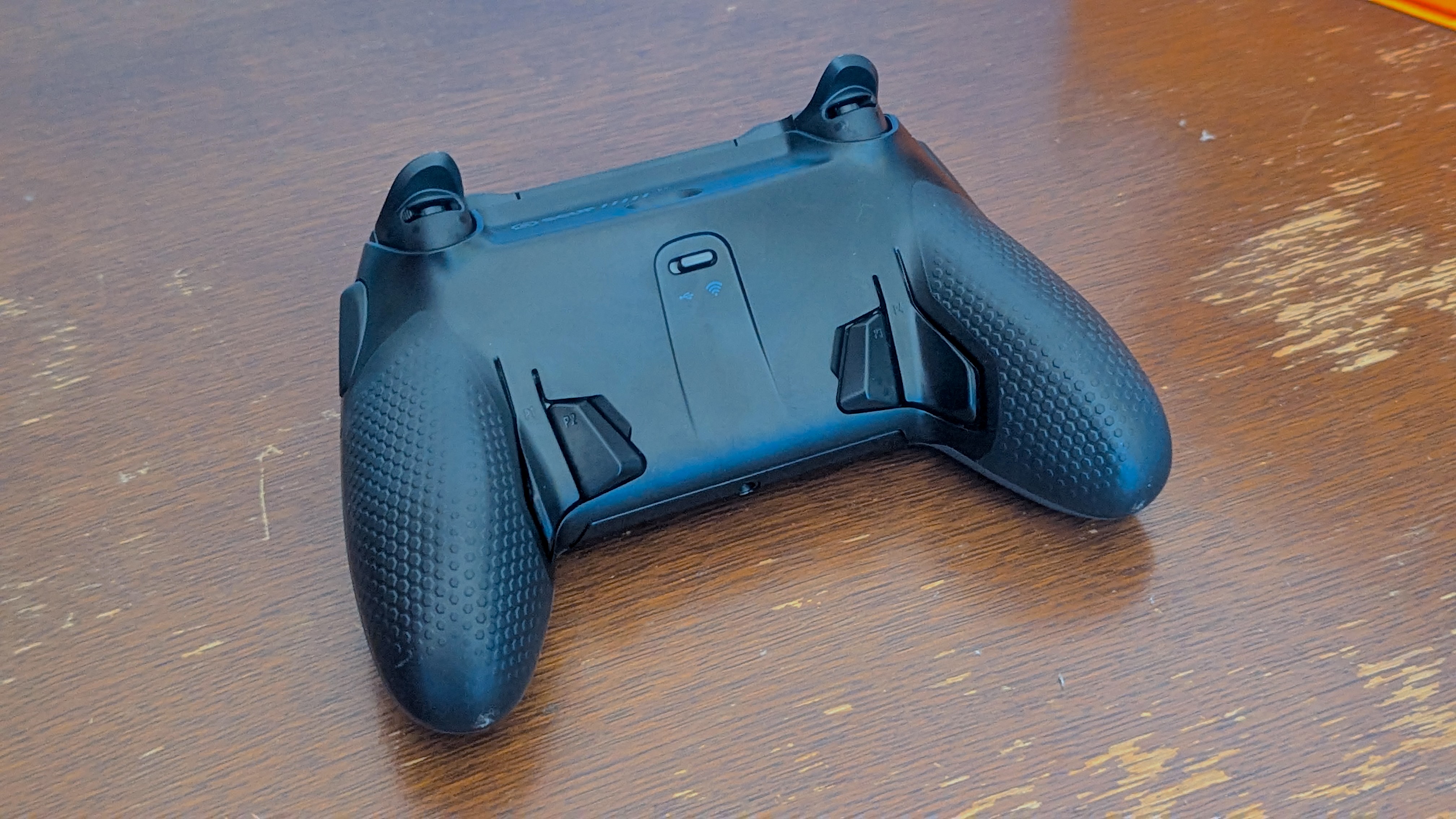
PC controllers tend to use the Xbox design layout for sticks, so it’s nice to see a symmetrical stick offering from Scuf here. I prefer the overall placement of the sticks to the official Sony gamepads, and really like how the form factor of the grips sits in your hands while holding the controller. Similarly, the buttons have some neat technology applied that makes the Scuf Envision Pro stand out. They’re more like mouse clicks than button presses, and I love how tactile and responsive they feel.
The other main design highlight for the Scuf Envision Pro is the five on-board G-Keys that run along the bottom of the controller. These can be mapped to whatever function you want, but are particularly useful for voice chat controls. They sit in a row surrounded by an RGB light bar, too, which can be customized with a range of colors. I found the light bar to be largely unnoticeable most of the time, as you need to be running iCue in the background while gaming to really make the most of them.
While the Scuf Envision Pro does lean on software for many of its design features, there are nice mechanical switches for the triggers. There’s a switch at the back too that toggles between wired and wireless inputs, but I never quite got the hang of switching them around, preferring to just wire in the controller to my PC. Build-wise, the Scuf Envision Pro is an impressive controller that feels bespoke and unique when compared to bulkier, more garish PC controllers.
Scuf Envision Pro V2 review: Performance
- Fantastic response times from triggers and buttons
- iCue can used to fully customize your experience
- Settings can be stored on the controller and used without iCue
Purely as a gaming controller, the Scuf Envision Pro V2 works flawlessly. The triggers and buttons are responsive, and the additional buttons can really make the difference in competitive online games. It does focus heavily on software to open up its full suite of features, however, and this is where the majority of the problems lie.
Corsair’s iCue is designed very much like a keyboard and mouse macro software, and is quite unfriendly to those used to playing on controllers at first glance. You must install iCue to set up the controller first time, though you can actually just install the Scuf drivers and use the controller’s limited on-board features if you’d rather 9I wouldn't recommend this, given how much you're paying for those full features). There’s no real tutorial or handholding within iCue, and unless you already know what you’re doing with dead zones and triggers, you’ll likely be a bit overwhelmed at first. You can create a handful of custom profiles, each color-coded, and then mapped to the controller.
I do like that the settings are saved on the controller itself, well most of them at least, meaning you can use the center button to switch profiles on the fly. The main problem comes when you want to use the extended features of the Scuf Envision Pro (like the G-Keys), which require you to have iCue running in the background. This does have an impact on performance, and given the tendency for the iCue software to lose connection to the controller, having to tab out of a game to check what’s going on is a real pain.
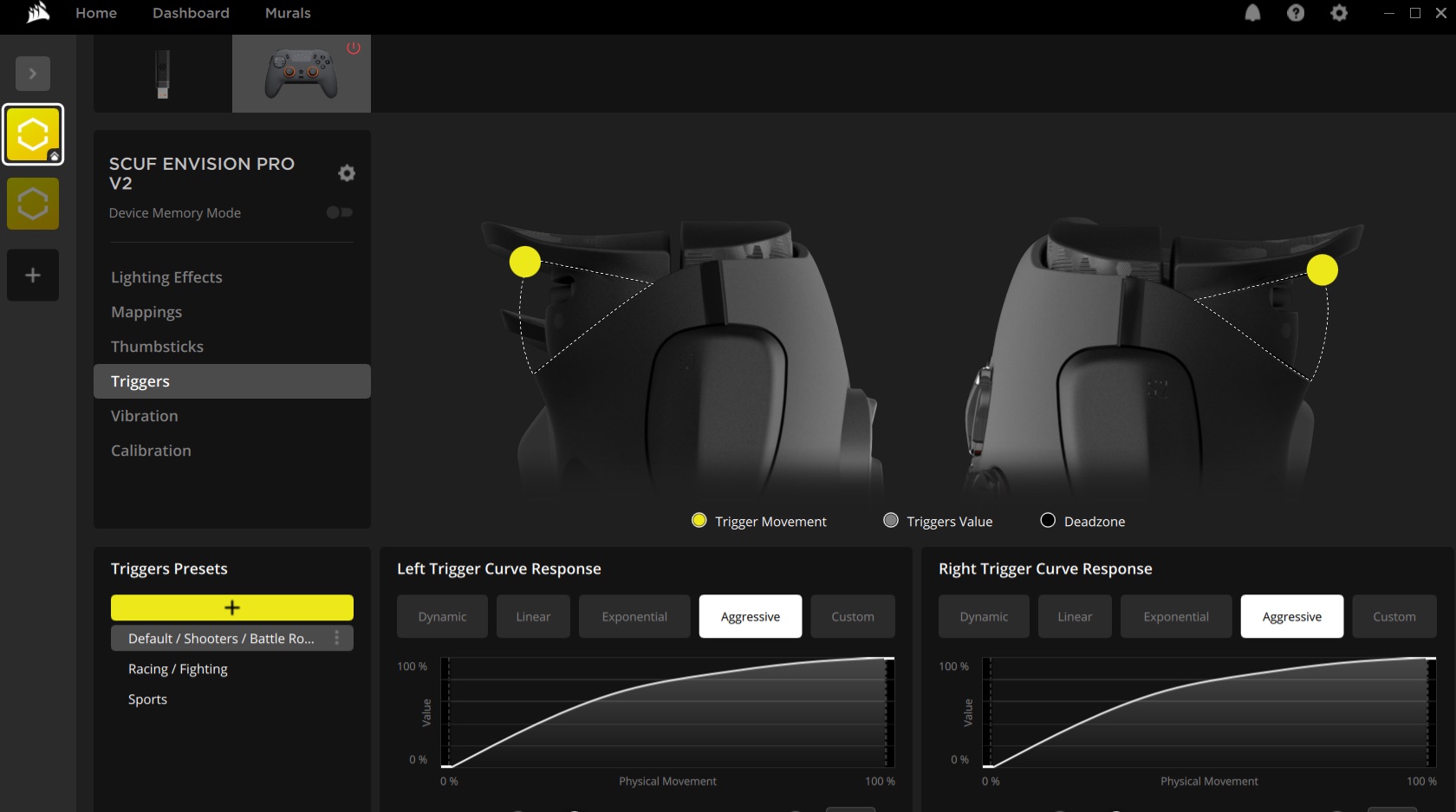
The only reason you’d spend this much on the Scuf Envision Pro is to make use of all the extra bells and whistles, but by tying things to iCue, Scuf has really made things difficult for users. I found that regardless of whether I was connected via wired or wireless mode, things would drop in and out as the controller lost connection every now and again. Upon connecting again, I was always unsure as to what mode the controller was actually in, what profile was active, and whether the back buttons were assigned correctly. This invariably led to my having to open iCue and scroll through several menus.
After 20 or so hours of testing, I just decided to stick with a wired connection, as wireless would often disconnect from iCue, disabling the back buttons, G-Keys, and sometimes even the triggers. Restarting iCue seemed to be the fix, but not one I wanted to be doing while playing a game on another screen. The Scuf Envision Pro’s complexity comes at a price, it seems, and with so many custom profiles to map, frequent software issues, and instances of on-board memory and software memory butting heads, I’m not sure the extra technology is really worth it for all but the most devoted of PC gamers.
The iCue software is easily the weakest part of the Scuf Envision Pro, and because it’s required for certain features to be unlocked, the hardware suffers as a result. As a premium PC controller, this is a great-feeling, highly responsive bit of kit. As an all-round package, I struggle to see who would bother spending so much time in iCue to really make the most of their purchase.
Should I buy the Scuf Envision Pro V2?
Buy it if...
You want unparalleled control over your controller’s settingsThe level of customization available on the Scuf Envision Pro is truly unmatched. You’ll be able to map hotkeys, tweak the RGB lighting, and set custom profiles for deadzones and more.
You’re a PC-only gamer looking for a controller with additional buttonsThe Scuf Envision Pro has a bunch of additional buttons when compared to a standard gamepad. There are four back paddles, side-mounted SAX buttons, and even 5 G-Key inputs. This is the most buttons I’ve ever used on a controller, and the possibilities for control schemes really are endless.
Don't buy it if...
You don’t want to rely on additional softwareThe iCue software is required to run in the background if you want to make the most of the Scuf Envision Pro. For those wary of performance and those who just want to plug and play, this isn’t the controller for you.
You don’t want to spend more on a premium controller that can only be used on PCThe Scuf Envision Pro is expensive, especially when you consider that it can only be used for Windows PC. Other alternatives will work on Mac, Xbox, and Linux, so it may be worth going for something more versatile if you play on multiple platforms.
Scuf Envision Pro review: Also consider
Still not sure if the Scuf Envision Pro V2 is for you? Here are two competitors that might better fit your needs.
Swipe to scroll horizontallyRow 0 - Cell 0Scuf Envision Pro
Razer Wolverine V3 Pro
Xbox Elite Series 2
Price
$169.99 / £159.99
$199.99 / £199.99
$199.99 / £169.99
Weight
10.05oz / 362g
14.72oz / 418g
12.16oz / 345g
Dimensions
6.5 x 4.23 x 2.5in / 165 x 107.5 x 63.5mm
8.86 x 8.7 x 3.23in / 157 x 105 x 100mm
3.07 x 7.29 x 7.23in / 193 x 193 x 90.9 mm
Compatibility
PC (Windows)
Xbox Series X, Xbox Series S, PC
Xbox Series X, Xbox Series S, PC, Mobile
Connection type
Wireless, Wired (audio jack), Bluetooth
Wireless (2.4GHz dongle), Wired (USB Type-C)
Wireless, Bluetooth, Wired
Battery life
19 hours
12-13 hours
40 hours
Software
iCue (Corsair)
Razer Controller App
Xbox Accessories App
Razer Wolverine V3 ProThis controller is more expensive than the Scuf Envision Pro, but you can also use it on Xbox. Generally, it’s a heavier and bulkier product, and lacks the additional button count of the Envision Pro. Still, its software and higher ease of use will make it more accessible for the majority of players looking for a PC controller.
For more information, check out our full Razer Wolverine V3 Pro review.
Xbox Elite Wireless Controller Series 2For those looking for a sturdy, premium controller that works on PC and Xbox, you can’t really go wrong with the Elite Series 2. It features four back paddles, and you can swap out stick inputs and other build aspects. The battery life is much higher here, and you can use the Elite Series 2 controller on mobile, Mac, as well as PC and Xbox. For the extra money, it’s a much more plug-and-play alternative, and one that’s often on sale.
For more information, check out our full Xbox Elite Series 2 Wireless Controller review.
How I tested the Scuf Envision Pro
- Tested for a month, playing Marvel Rivals, Fortnite and Battlefield 6
- Used primarily in default control scheme, but tested button mapping, and profile swapping functions
- Tested in wireless and wired modes, and used iCue to dial in deadzones, trigger settings, and lighting options
I used the Scuf Envision Pro controller with a gaming laptop, and with the Corsair iCue software downloaded. Occasionally, I’d use the controller in wireless mode, but I found the wired connection to be much more stable. Over time, I dug into the iCue software to create custom profiles, tweak deadzones, and experiment with the SAX button inputs.
After tweaking the Scuf Envision Pro, I primarily mapped the extra buttons to voice chat inputs. The SAX buttons were great for triggering grenades in FPS games, while the G-Keys were mostly used to mute and switch voice chat functions.
First reviewed December 2025-January 2026
Read more about how we test
Scuf Envision Pro V2: Price Comparison
 No price informationCheck Amazon SingaporeWe check over 250 million products every day for the best pricespowered by
 Jake GreenEvergreen Editor, TechRadar Gaming
Jake is currently working as Evergreen Editor at TechRadar Gaming. Hailing from the overcast shores of Brighton in the United Kingdom, Jake can be found covering everything from features to guides content around the latest game releases. As seen on NME.com, Eurogamer.net, and VG247.com, Jake specializes in breaking games down into approachable pieces for guides, and providing SEO advice to websites looking to expand their audiences.
Show More CommentsYou must confirm your public display name before commenting
Please logout and then login again, you will then be prompted to enter your display name.
Logout Back To Top Read more Corsair Novablade Pro review: a seriously luxurious leverless
 Razer Kishi V3 Pro review: a premium mobile gaming experience with surprisingly great software
 Razer Raiju V3 Pro review: a great premium pick with a better Xbox counterpart
 Thrustmaster eSwap X2 H.E. review: still a great controller, but a disappointingly slight upgrade
 SteelSeries Arctis Nova 7P Gen 2 review: a highly versatile headset that’s become my daily driver
 PowerA Fusion Pro Wireless Controller for Xbox review: you can get better gamepads for much less
Latest in Gaming
PowerA Fusion Pro Wireless Controller for Xbox review: you can get better gamepads for much less
Latest in Gaming
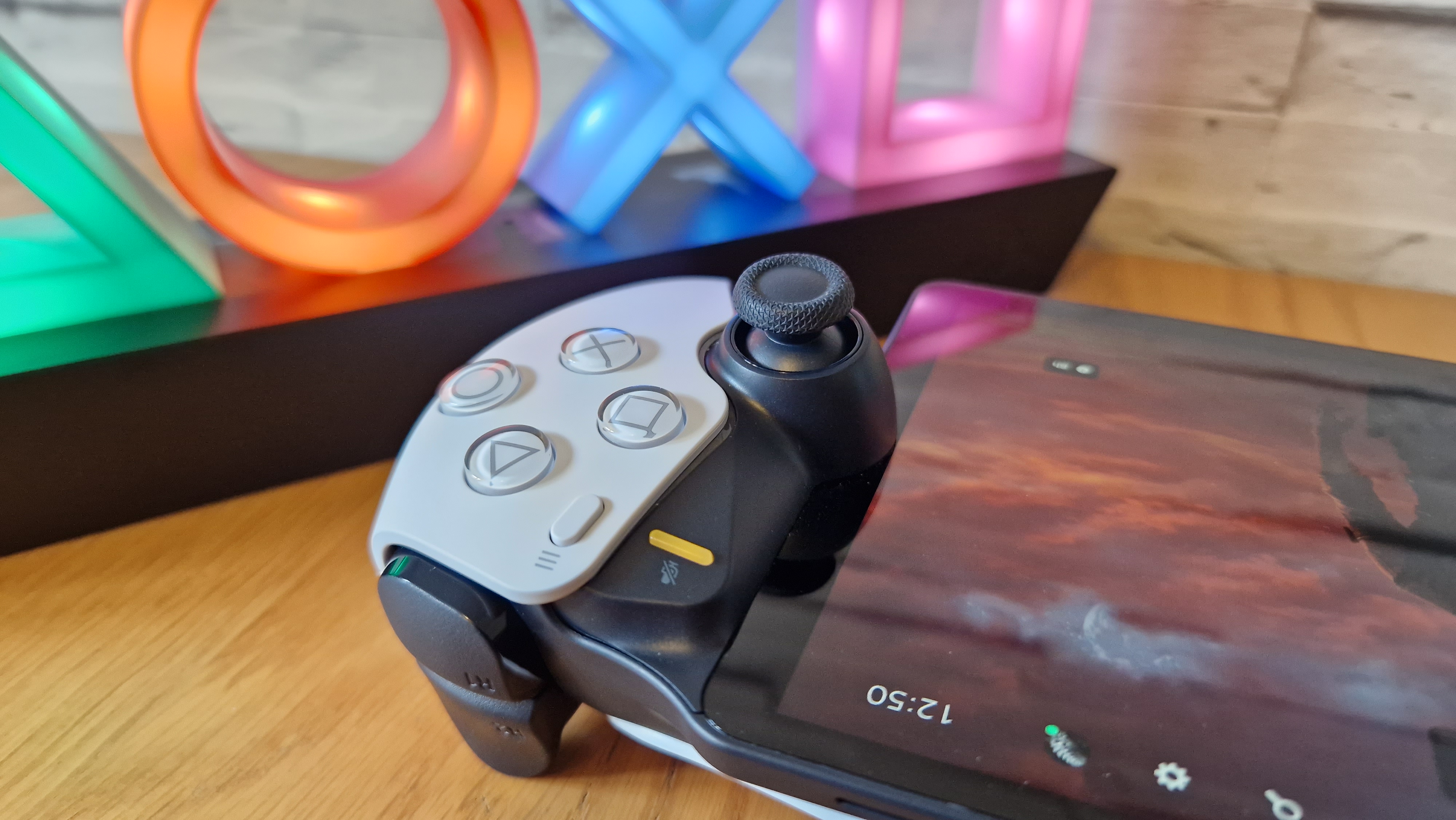 I waited two years to get a PlayStation Portal, and now wish I’d bought one sooner
 Obsidian's Avowed is leaping from Xbox to PS5 next month
 Grand Theft Auto 6 might not release this year after all as the game is reportedly 'not content complete'
 The Nintendo Switch 2 may have been the fastest-selling console at launch, but its first Christmas sales disappoint
 I flew the Star Wars Death Star trench run on the Sphere in a Lego X-Wing — and nothing else comes close
 Xbox confirms Developer Direct 2026 showcase for later this month — here are the games to expect
Latest in Reviews
Xbox confirms Developer Direct 2026 showcase for later this month — here are the games to expect
Latest in Reviews
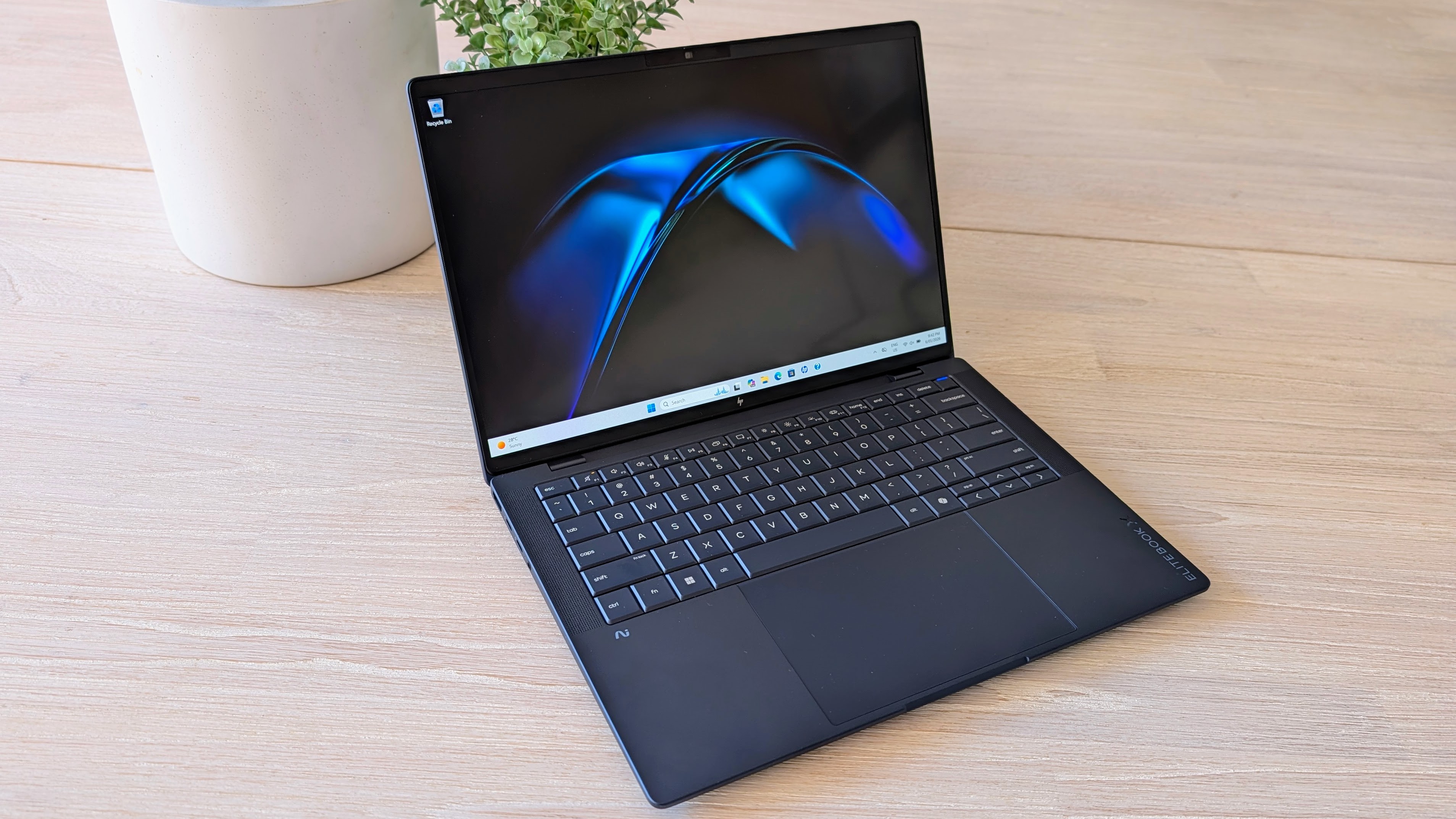 Hands on: HP EliteBook X G2i
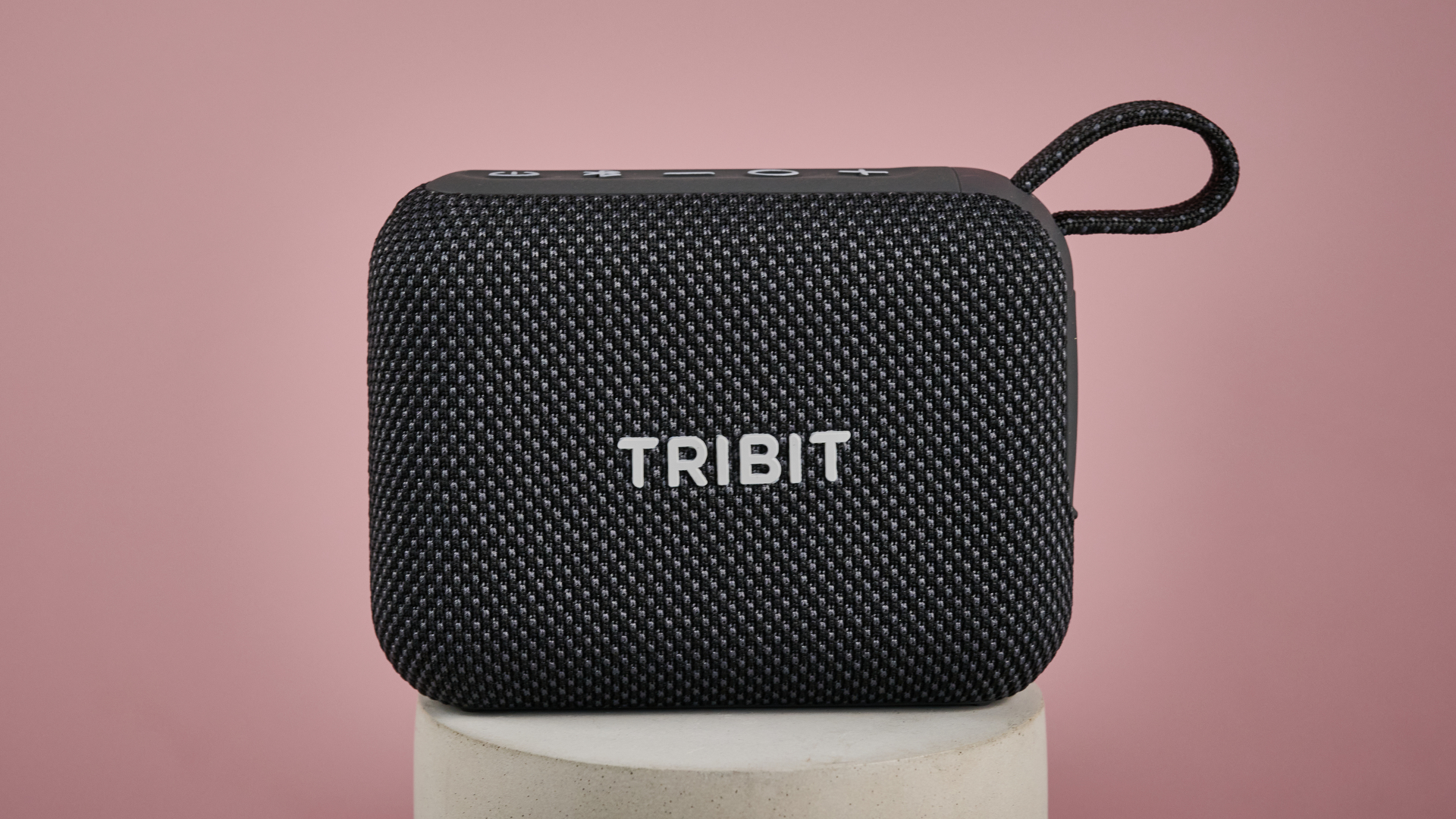 Tribit PocketGo review: an ultra-compact yet flawed Bluetooth speaker
 Scuf Envision Pro V2 review: a skillfully specialized PC controller that feels great to use, but has very few real use cases
 Dell Pro Max 16 Plus mobile workstation review
 X-Chair X-Tech office chair review
 Dell XPS 14 2026 and XPS 16 2026 hands-on review
LATEST ARTICLES
Dell XPS 14 2026 and XPS 16 2026 hands-on review
LATEST ARTICLES- 1The battle of the SuperPods: Nvidia challenges Huawei with Vera Rubin powered DGX cluster that can deliver 28.8 Exaflops with only 576 GPUs
- 2Acer launches 40th Ryzen AI Max+ 395 system as it pitches Veriton RA100 mini PC as an AI workstation — but unless it is keenly priced, it will struggle against better value competitors
- 3I've looked at every Samsung Galaxy S26 price and release date rumor so far — here's what I think will happen
- 4Ecovacs wants to make self-clean window-bots happen, but I don't think they're going to happen
- 5North Korean hackers using malicious QR codes in spear phishing, FBI warns